Event Page V2 - Countries - Drupal
Intro. This new template is used to showcase upcoming events, live webinars, and on-demand webinars. Guidelines. At least a date should always be selected. The hero should contain a short intro about…

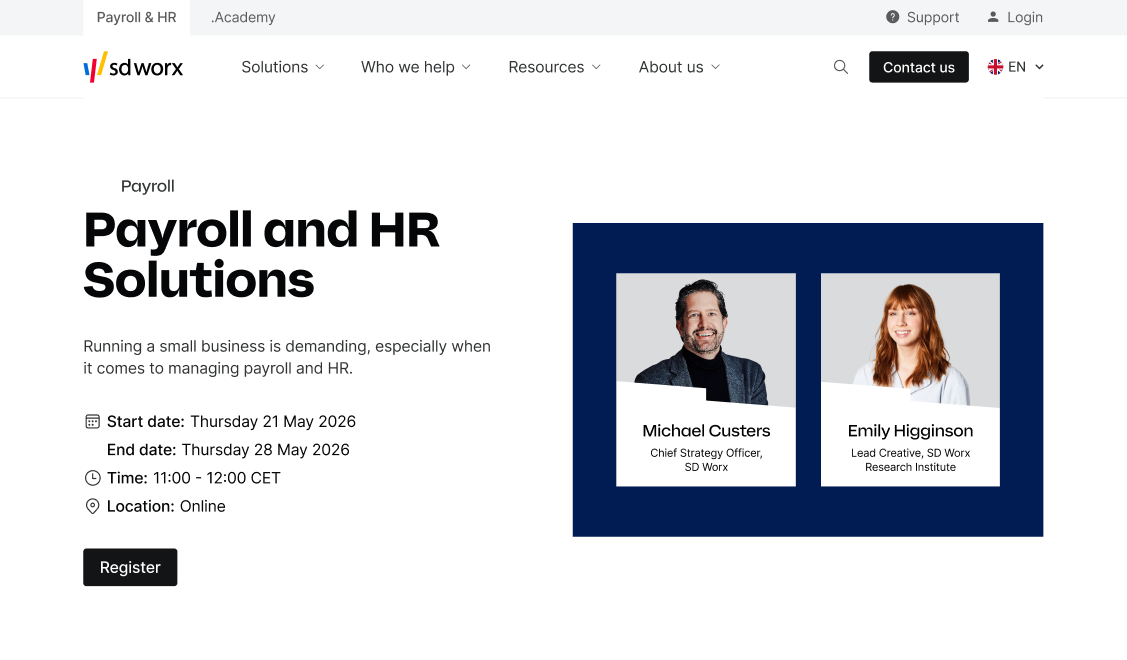
Intro
This new template is used to showcase upcoming events, live webinars, and on-demand webinars.
Guidelines
- At least a date should always be selected
- The hero should contain a short intro about the event and also a call to action to redirect to the form.
- Don't hesitate to add the speakers thanks to the person list.
Dimensions/Limitations/Specs
- Events are automatically added to the Event Overview page.
- As an option, it can be added under a Pillar page
- Hero image/Search image = 1200 x 800 - The image will originate from the template functionality of Frontify.
- Live events and live webinars are automatically removed from the Event Overview page once their end date has passed.
- On-demand webinars remain on the Event Overview page regardless of their date.
How to
Page creation
Before you start, if it's the first case of the website, check if a Event Overview page already does exist.
- Go to the following icon on the left side of your screen

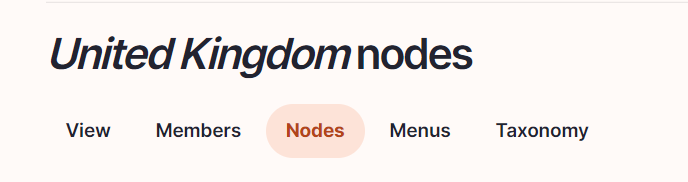
- Select the country you want to work in and click on "nodes"
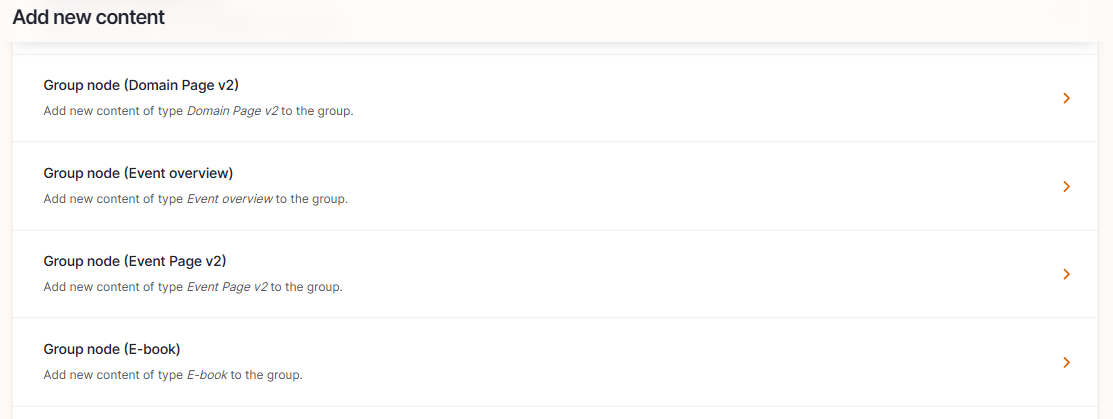
- Click on “add content”

- Choose the content type: "Event Page v2"
- Set the language / Parent /Slug
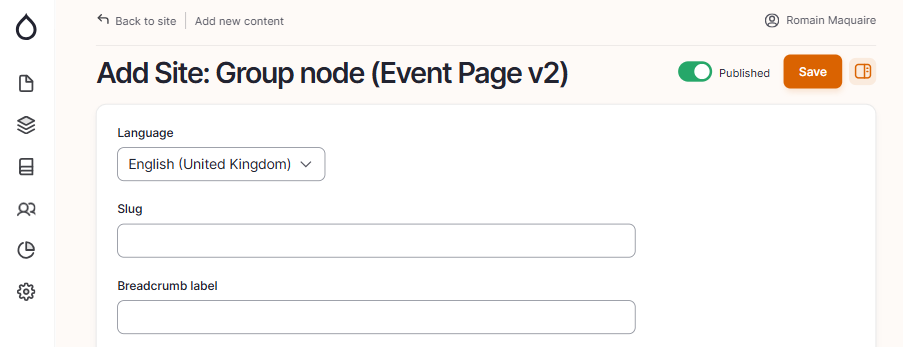
- Language: The language should already be preselected
- Slug: Please use this field if you want a custom URL (don't forget the - between the words). It will be filled automatically with date and the title if it hasn't been filled.
- Breadcrumb label: Please use this field if you want a custom breadcrumb. It will be filled automatically with the page title if it hasn't been filled.
- Configure the page Content tab
Hero
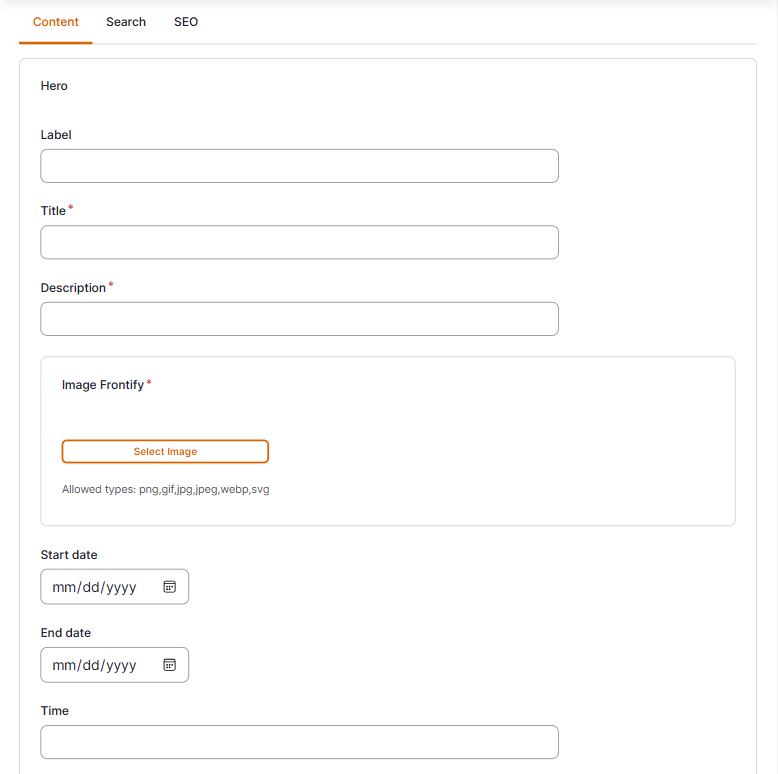
- Title: Please fill the name of the event
- Description: The description will appear in the hero section of the event
- Image Frontify: Showcases the event speakers.
1. Create the hero image for the event page based on the pictures of the speakers in Frontify (Website - Template library - SD Worx Brand Guideline)
2. Once the image is created in Frontify, download it into your computer
3. Save the image using the following naming convention country code_name_of_the_event_start_date_event_1200x800
For example: NL_prinsjesdag_2026_17_09_2026_1200x800
4. Upload the image into Frontify under Countries Event Page > Countries_eventpage_hero (Website image library - SD Worx - SD-Worx)
5. Go to Drupal, open the event page you want to add the picture, click on add picture
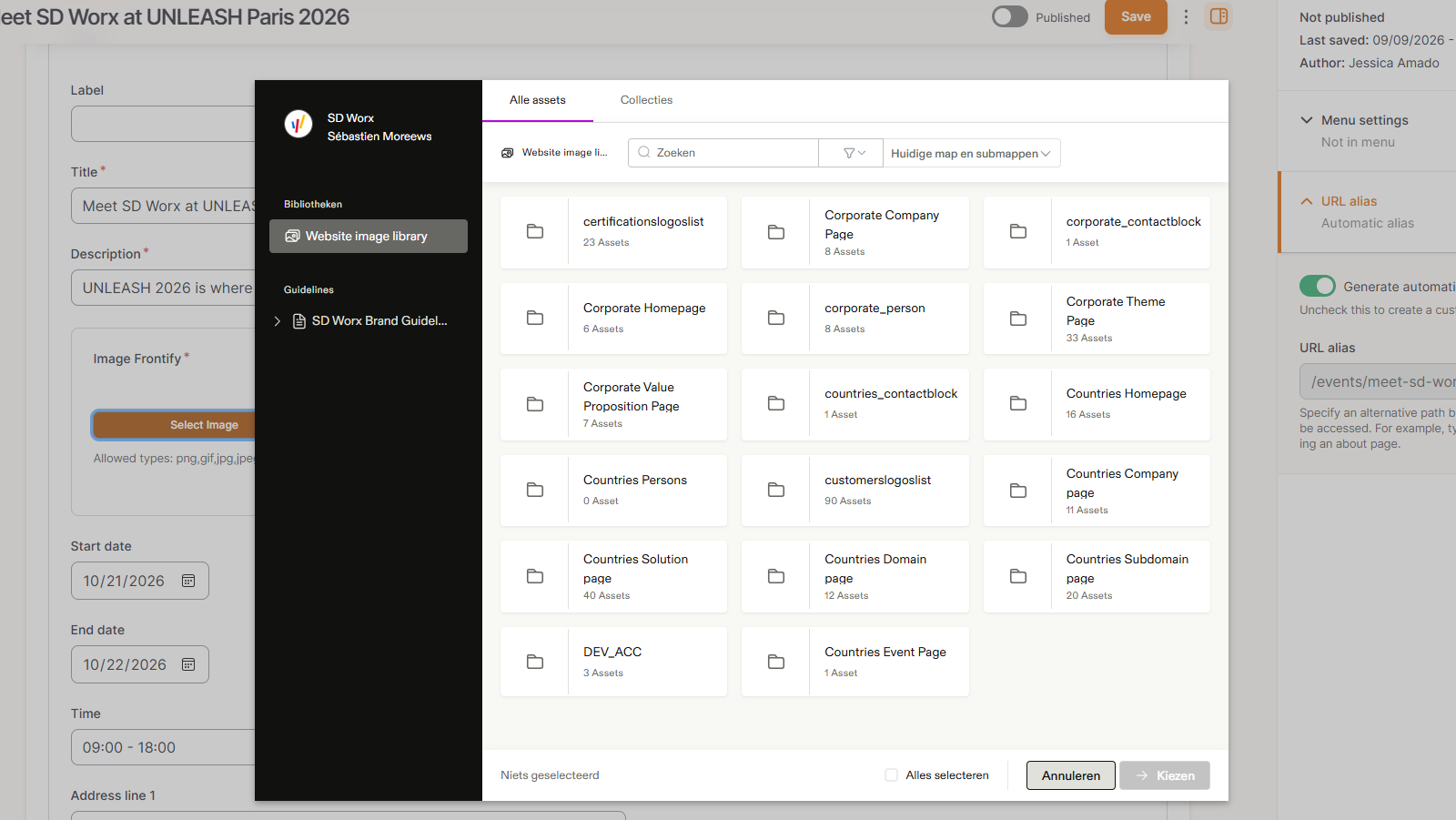
6. You can type "Event" in the Frontify search window to find quickly the image you have uploaded
7. Click on select
In case of a live event or a webinar, please fill:
- Start date: Date when the event will start. (In case you didn’t intend to enter a date, you can remove it by clicking on the calendar icon and pressing "clear")
- End date: Date when the event will finish (In case you didn’t intend to enter a date, you can remove it by clicking on the calendar icon and pressing "clear")
- Time: Specify the start/end time of the event
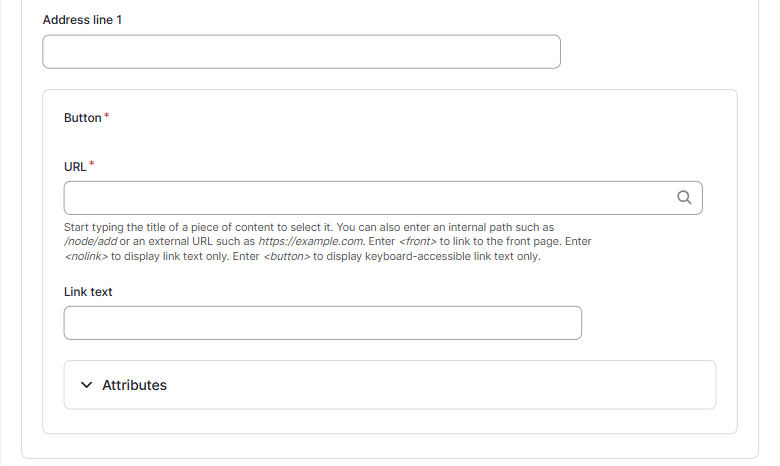
- Address line 1: Should include the house number, street name, postcode and city name
- Button:
- URL Should link to the form on the same page (please use anchor)
- Link Text: Text which appears on the button (optional)
Overview
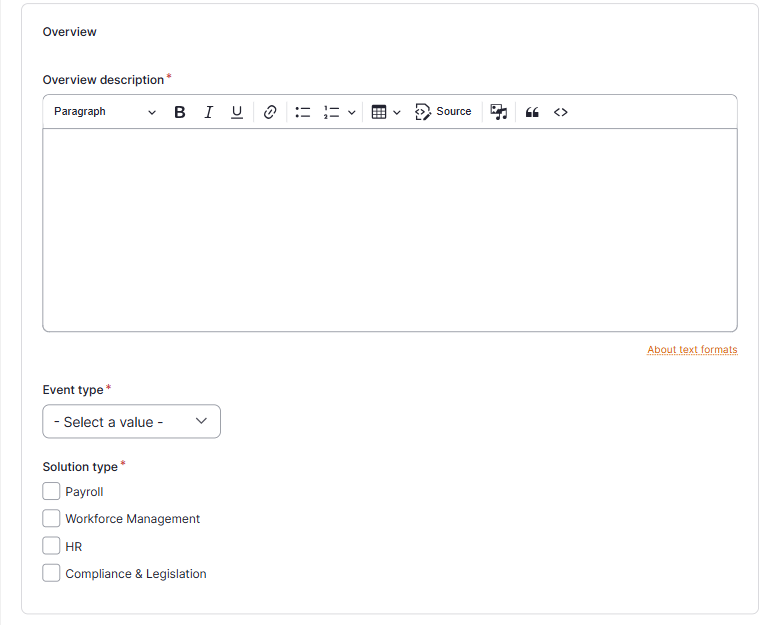
- Overview description: The text is showed in the event tile which appears on the Event overview page and eventually on the Resources overview page and the Pillar page.
- Event type:
- Live Event: To be used for an event taking place on a physic location
- Live Webinar: To be used for a webinar taking place on a certain date
- On-demand Webinar: To be used for a webinar which has already taken place and which has been recorded
- Solution type: Corresponds to the Topic filter on the Event overview page
Resource overview
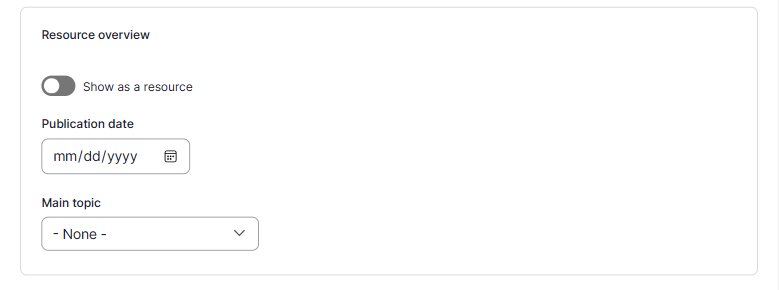
- Show as resource: Move the toggle to the right if you want the event to be showed on the Resources overview page and on a Pillar page
- Publication date: Please select the date the event will take place
- Main topic: Please select the main Pillar page on which the event should appear
Paragraphs
In this new template the event page body is divided in 5 sections:
- Event program: A concise overview of the event agenda, including the schedule, key activities, featured speakers, and entertainment.
- Event benefits: Highlight four key advantages attendees will gain from participating in the event.
- Quote: Feature a compelling quote from a keynote speaker, organizer, sponsor, or past attendee.
- Speakers: Introduce the event speakers.
- Note: We recommended to use the same image as their linked in profile.
- Register: Set the iframe form to register to the event.
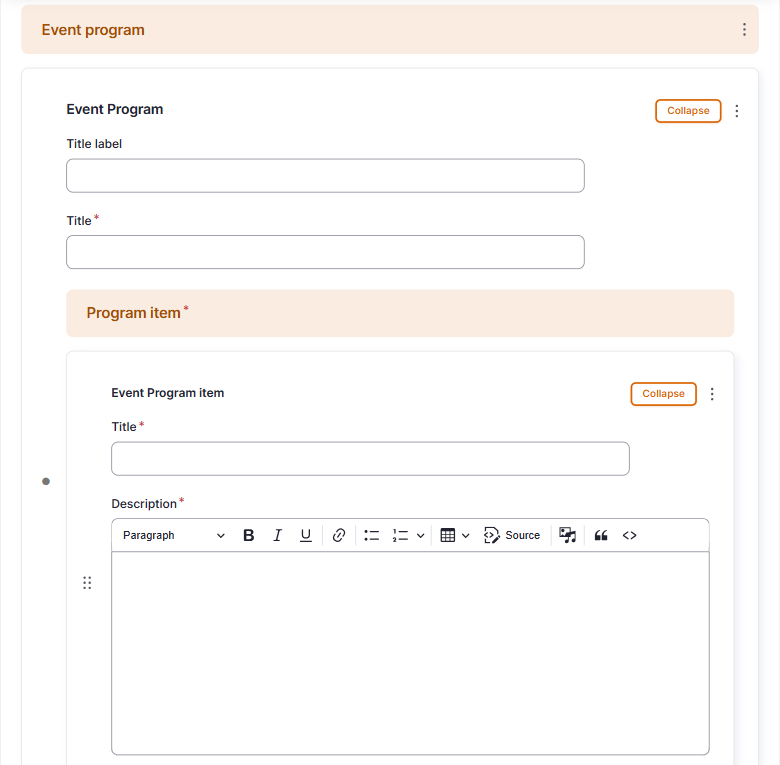
In the Event Program section you can add up to 10 subjects which will appear as expandable accordeons on the website.
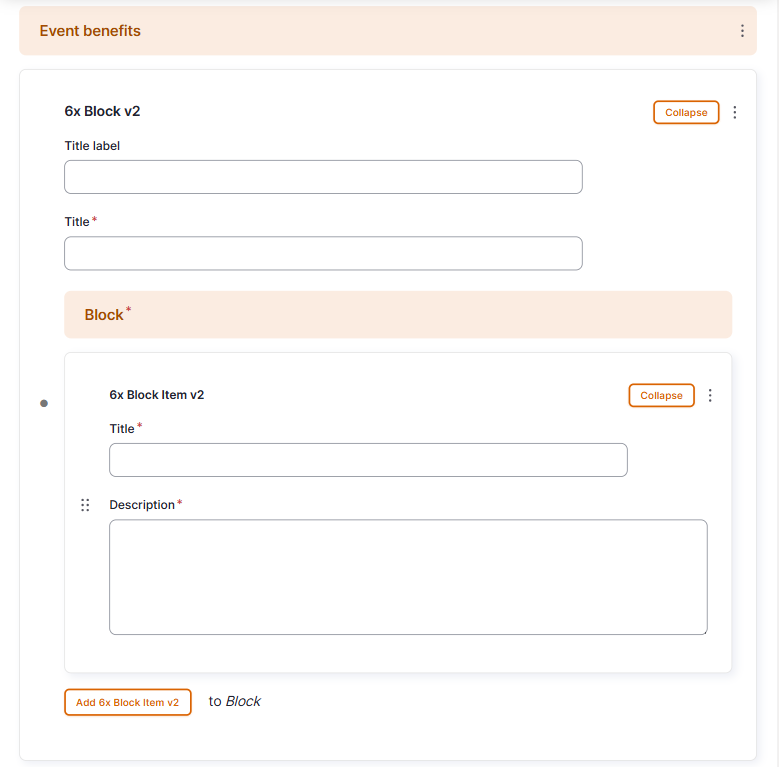
In the Event benefits section you can add up to 4 benefits. It requires to highlight at minimum 2 benefits of attending the event.
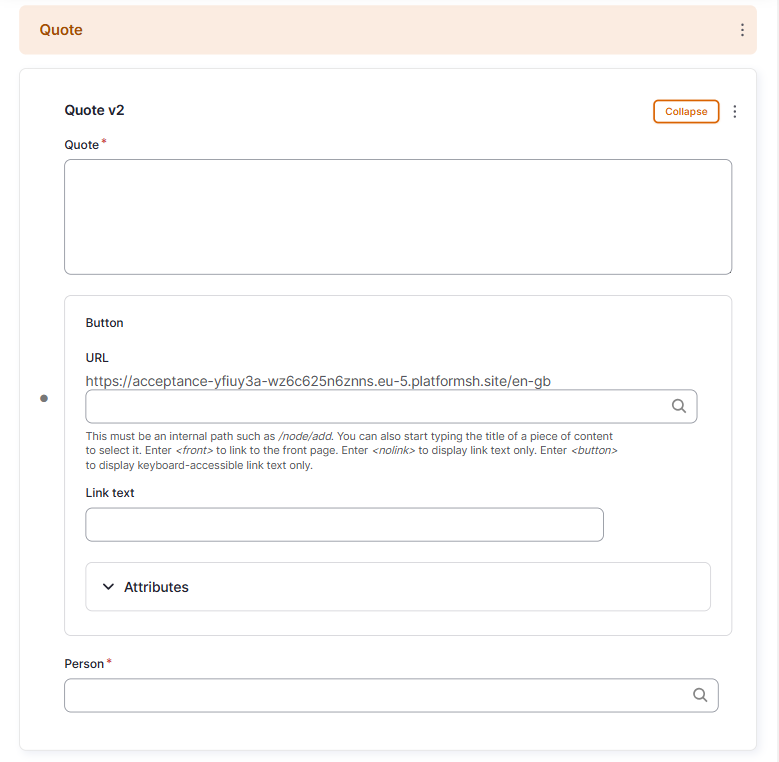
In the Event quote section you can set the following elements:
- Quote: please add the text of the quote without “
- Person: Please select a person. For more information, please refer to the manual “how to create a person”
- Button: Link to a page dedicated to a case study (optional)
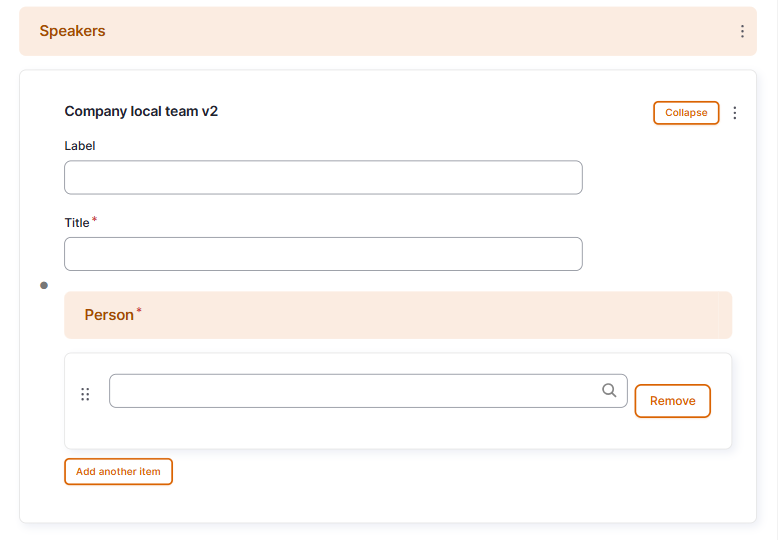
In the Event Speakers section you add select up to 9 speakers.
- If a speaker cannot be found a "person" content type should be created.
- We recommended to use the same image as in the Linked In profile.
- The website will automatically display a LinkedIn link to the person´s profile if filled in the person content type
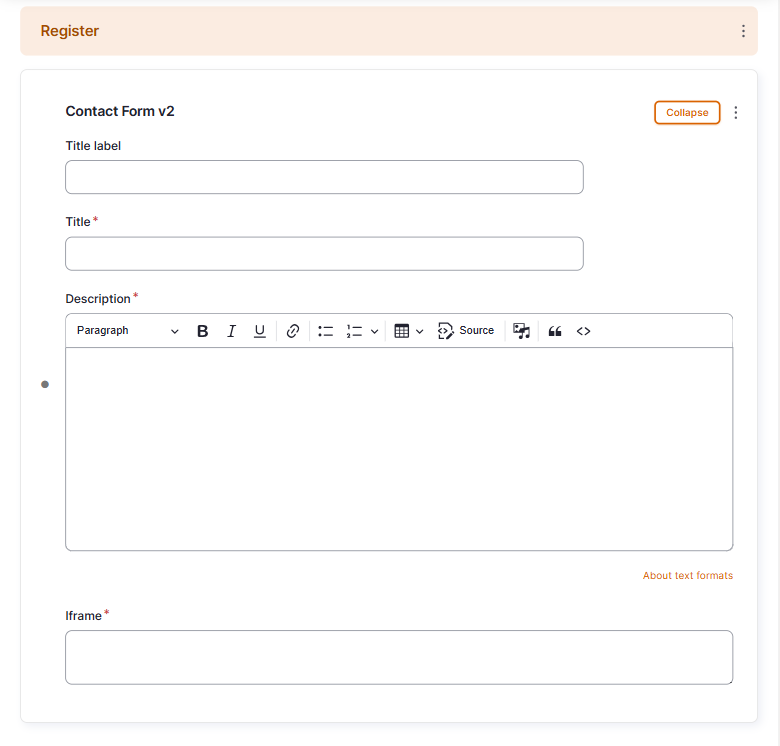
In the Event Register section you add the iframe form to register to the event.
- Configure the page Search tab
The Search Tab will have the following: Search Title (mandatory), Search Description (mandatory) and Search Image (optional).
- Search Title: Use the same title as on the content tab
- Search description: This is the text which appears in the search results of the website itself and in the search results of Google.
- Search Image: Use the same image as on the content tab.
- Configure the page SEO tab
Relevant elements are automatically filled and/or taken from the search section.
- Once the page content is set toggle Published and click on Save

How did we do?
Event Page - Countries - Drupal
Video Overview Page - Countries - Drupal