Case Page V2 - Countries - Drupal
Intro. Case pages are very important in order to show on a very concrete way to our prospects our know-how and how we have operated in similar conditions to them. The case page V2 is a new template t…


Intro
Case pages are very important in order to show on a very concrete way to our prospects our know-how and how we have operated in similar conditions to them.
The case page V2 is a new template to create standardized pages to improve design consistency and a unified brand experience across the websites.
Guidelines
The main visual used should be representative of the customer and/of his activity. The main visual should also be authorized for use on our website by the customer.
The title of the case should be a combination of the following:
- The name of the customer
- The problem or the value we created for the company
- HR/Payroll specific terms
The name of the case should be reflected in the URL of the case
The subtitle should contain the introduction to the case.
Dimensions/Limitations/Specs
- Cases are automatically added to the cases overview page.
- Hero image/Search image : 1200 x 800 in webp - Please consult the visuals FAQ page for more infomation regarding copyrights
- Logo : 48 pixels height max - recommended width : 169 pixels in svg format (transparent background)
How to
Page creation
Before you start, if it's the first case of the website, check if a cases Overview page already does exist.
- Go to the following icon on the left side of your screen

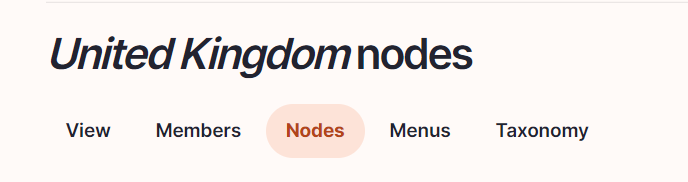
- Select the country you want to work in and click on "nodes"
- Click on “add content”

- Choose the content type: "Case Page v2"

- Set the language / Parent /Slug

- Language: The language should already be preselected
- Slug: Please use this field if you want a custom URL (don't forget the - between the words). It will be filled automatically with date and the title if it hasn't been filled.
- Breadcrumb label: Please use this field if you want a custom breadcrumb. It will be filled automatically with the page title if it hasn't been filled.
- Configure the page Content tab

- Title: To be filled with the title of the case.
- Subtitle: The subtitle appears just below the title on the case page.
- Logo: The logo will appear on the cases overview page as well as on the case page.
- Image: The image will appear on the cases overview page as well as on the case page.

- Read Time: Please indicate the time it takes to read the case in minutes (only number, minutes will appear automatically).
- Established in: Please indicate the year when the customer company was established. The information will appear on the right side of the case page.
- Product: Please indicate which SD Worx solution was used to solve the customer case. The information will appear on the right side of the case page.

- Filters: The filters selected will appear on the cases overview page as well as on the right side of the case page. Please refer to the cases overview page to see how to manage these filters
- If you need a call to action, please use the boiler plate which is located on the right side of the case and is managed from the cases overview page.

Paragraphs
In this new template the case page body is divided in 4 sections:
- Introduction section - A brief overview that introduces the customer, their context, and the purpose of the case.
- Challenge section - A clear description of the key problem, need, or objective the customer was facing.
- Solution section - An explanation of how SD Worx addressed the challenge, including the services or products implemented.
- Results section - A summary of the measurable outcomes and benefits the customer achieved after the solution was implemented.
Each section is composed of a mandatory text paragraph and an optional paragraph (video, highlight, quote, figures, text depending on the section)

In the Case introduction you can add text and an optional video

In the Challenge section you can add text and an optional paragraph (highlight, video or quote)

In the Solution section you can add text and an optional paragraph (highlight, video or quote)

In the Results section you can add 1 text paragraph and 2 optional paragraphs (figures and a second text paragraph)
Case video

For the Case video click on the "Add media" to select a video
Case highlight

Text: Sentence of the case that should be highlighted
Case quote

Quote: please add the text of the quote without “
Person: Please select a person. For more information, please refer to the manual “how to create a person”
- Configure the page Search tab
The Search Tab will have the following: Search Title (mandatory), Search Description (mandatory) and Search Image (optional).
- Search Title: Use the same title as on the content tab
- Search description: This is the text which appears in the search results of the website itself and in the search results of Google.
- Search Image: Use the same image as on the content tab.
- Configure the page SEO tab
Relevant elements are automatically filled and/or taken from the search section.
- Once the page content is set toggle Published and click on Save

How did we do?
Case Page - Countries - Drupal
Office Overview Page - Countries - Drupal